Converting
What is Crossfooted?
An online bank statement converter that does one job: it turns bank and credit card statement PDFs into
Excel, CSV, or a file for QuickBooks Online or Xero, and checks every row against the bank’s own balances
before you download. You may also see this called a bank statement extractor or parser. It’s for
bookkeeping, tax prep, spreadsheets, or your own tools.
Can it convert invoices, receipts or other documents?
No. We only do bank and credit card statements. A statement has a running balance, an opening and a closing
balance, and each month carries into the next, so every row can be checked against the bank’s own numbers.
Invoices and receipts don’t work that way.
What’s the best bank statement converter?
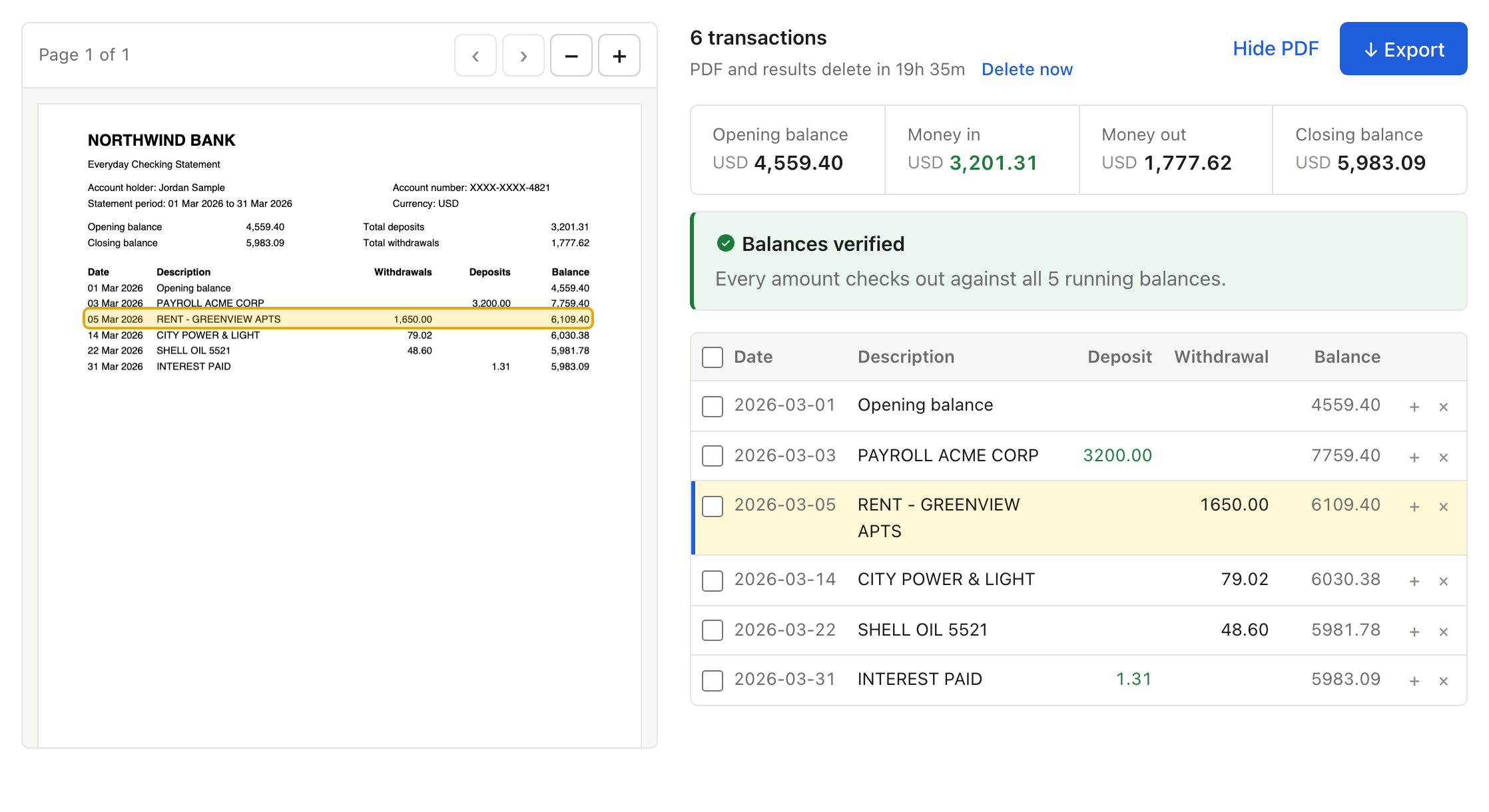
The one whose numbers you can trust without retyping them. Look for three things: it checks every row
against the statement’s running balance, it shows the original PDF beside the table so you can check a row
yourself, and it exports the file your accounting app imports. The fairest test is to run the same
statement through two or three and compare. Crossfooted does all three, and the first 20 pages each month are free.
How does conversion work?
Drop one or more PDFs and press Convert when you’re ready (nothing is uploaded before that).
AI reads the statement layout, finds the transaction rows, and pulls out dates,
descriptions, amounts, and running balances when they’re on the page. Then we check every row against the bank’s running balance. Multi-page statements
are handled automatically — no templates or bank setup. Preview the table in your browser, then download.
Which banks are supported?
If it comes as a PDF statement, we can usually convert it — including banks like Chase, Bank of America,
Wells Fargo, Citibank, Capital One, HDFC, Emirates NBD, and Standard Chartered, plus smaller banks and credit unions.
Each upload is read on the fly, so layouts we haven’t seen before still work. Clear multi-page statements convert best.
Can you handle scanned or image-based PDFs?
Yes. Digital text PDFs and many scanned or image-based statements both work.
Cleaner scans convert more reliably — blurry photos or heavy compression can miss a line.
If a result looks off, try a sharper export from your bank.
How accurate is the conversion?
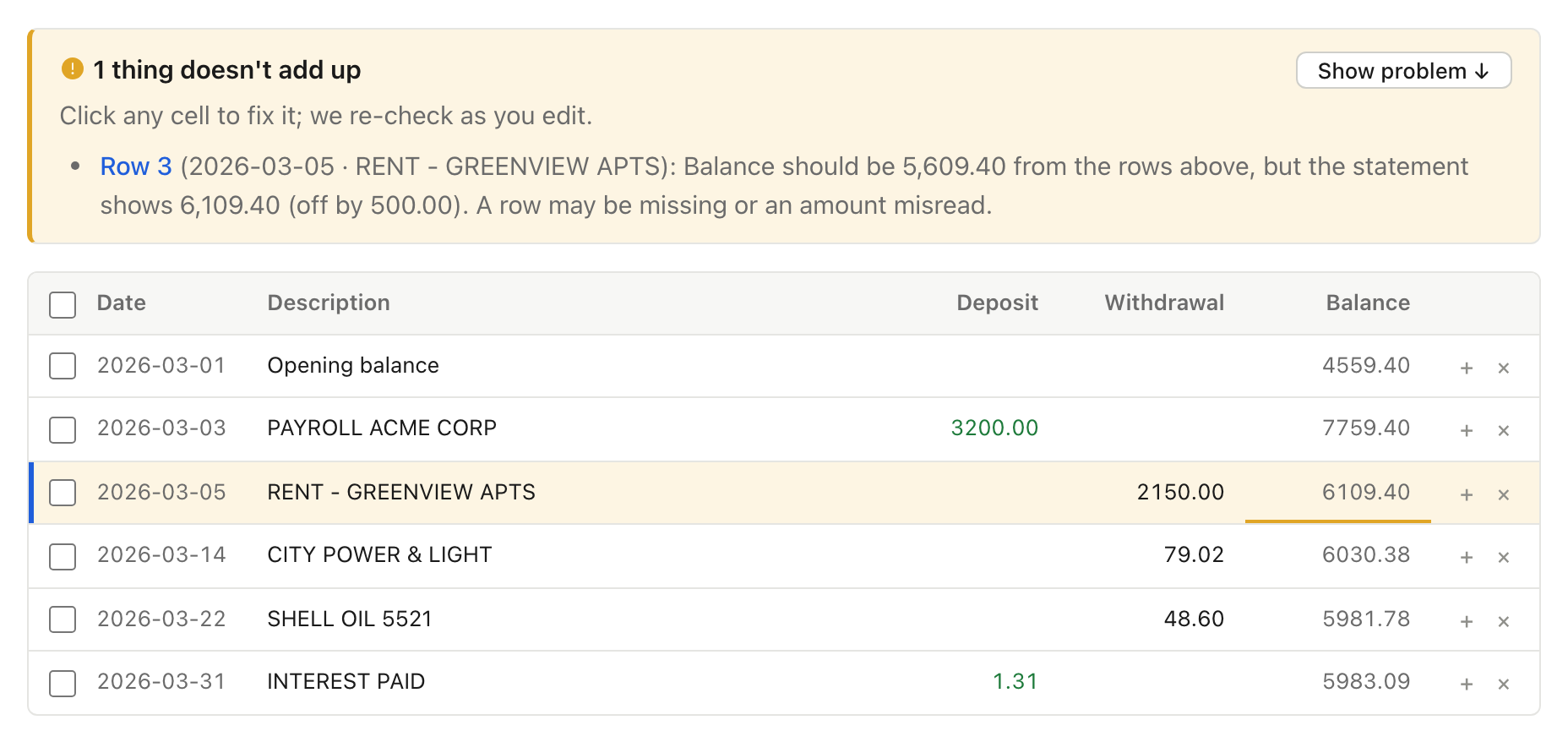
Every row is checked against the bank’s own numbers. Each running balance has to equal the previous balance
plus the money in and out since, and the opening and closing balances have to match the ones printed on the statement.
If something doesn’t add up, the statement is read again. If it still doesn’t, you’ll see exactly which rows to check,
right beside the PDF. Statements without running balances can only be checked against their totals, so give those a quick look before you import.
How long does a conversion take?
Most statements finish in under a minute. Longer multi-page or heavily scanned PDFs can take a bit more.
You’ll see progress while we work. Conversions run in the background, so you can close the tab and find the result in History.
Exports and your accounting app
What export formats are available?
Excel (.xlsx) and CSV for spreadsheets (see bank statement to Excel); QuickBooks Online (CSV or OFX), Xero (CSV or OFX), OFX and QIF for accounting apps;
and JSON if you’re building your own workflow. Pick DD/MM/YYYY, MM/DD/YYYY or YYYY-MM-DD dates.
Does it work with QuickBooks or Xero?
Yes, by file. Download the QuickBooks CSV (or OFX) and use Bank transactions → Upload from file in QuickBooks Online
(step by step on our PDF to QuickBooks Online page),
or download the Xero CSV (or OFX) and use Import a statement in Xero. For Quicken on Windows, use QIF.
QuickBooks Desktop and Quicken only accept .qbo/.qfx files from participating banks, so we don’t generate those.
Plans and your account
Can I try it for free?
Yes. It’s a free bank statement converter for up to 20 pages a month, no credit card required.
Sign up, confirm your email, convert a statement, and upgrade later only if you need more pages
(Pro 300 a month, Business 1,500 a month), or buy a one-time pack of 500 pages. Or
see a sample statement first, no account needed.
What happens when I hit my page limit?
Conversion pauses until your monthly allowance resets, you upgrade, or you buy a one-time pack of 500 pages.
There are no surprise overage charges — when you’re out of pages, we simply stop until you have more.
How do I cancel, or delete my account?
Cancel any time in Account → Plan & billing → Cancel plan. Plans are monthly with no annual contract: you keep your
plan until the end of the month you paid for, and you won’t be charged again. To delete everything, use Delete account on the same page: your statements,
results and account are removed right away.
How do I get in touch?
Email hello@crossfooted.com with questions, problems
or a statement that didn’t convert well.