Can QuickBooks import a PDF bank statement?
QuickBooks Online can now read a PDF or photo of an English statement from Upload from file, and you check
what it found before saving. QuickBooks Desktop can’t: it only imports .qbo files from your bank. If you want
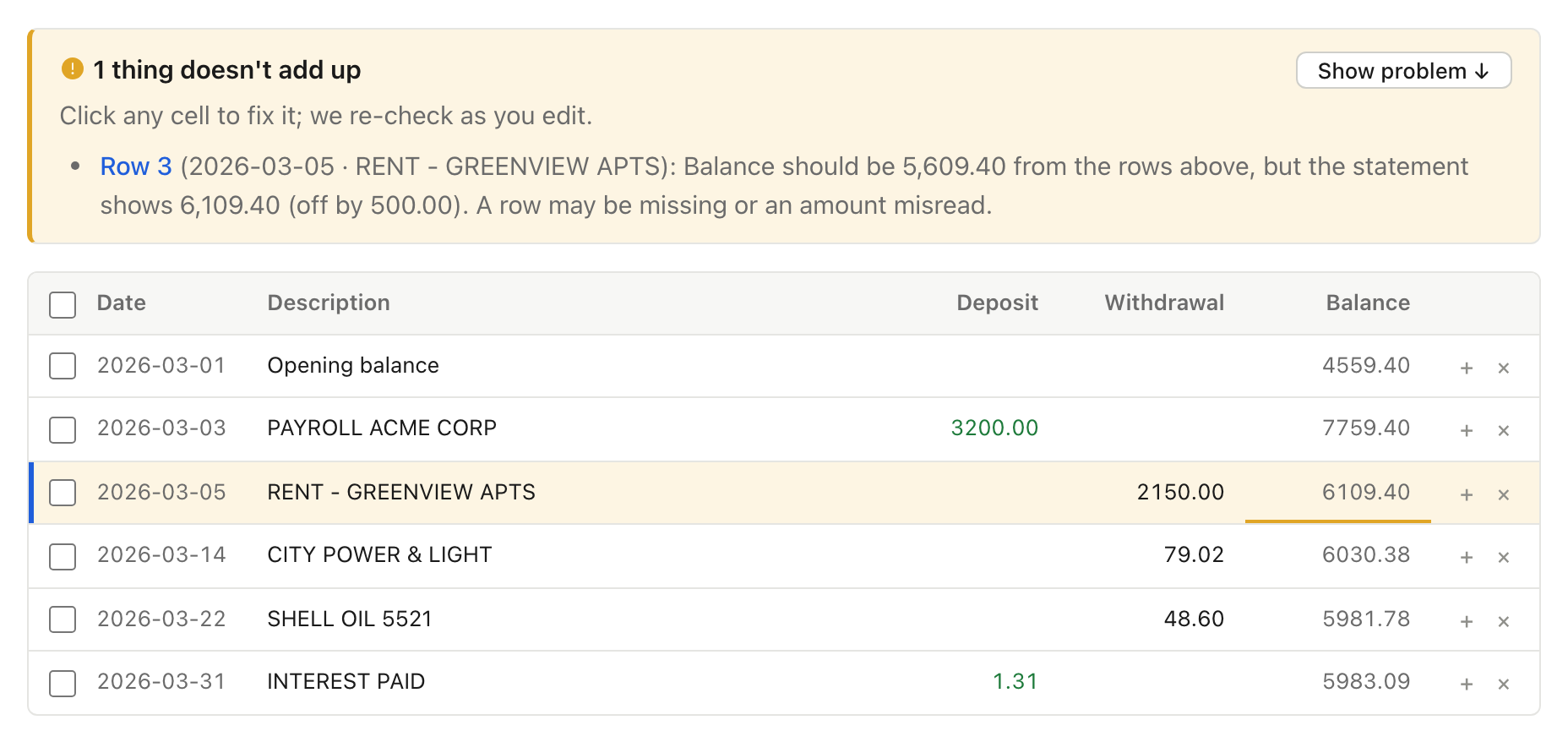
every row checked against the bank’s balance first, or a year of statements done at once, convert with
Crossfooted and upload the CSV or OFX instead.
How do I convert a PDF to QBO for free?
Sign up for the Free plan: 20 pages a month, about 6 statements, with no card needed and no time limit.
Confirm your email, drop in your PDF, and download the QuickBooks Online file. For more, paid plans are
monthly with no annual contract, or a one-time pack of 500 pages lasts 12 months.
What is a QBO file?
QBO means two things. It’s short for QuickBooks Online, and .qbo is also a file type (Web Connect) that banks
offer for QuickBooks. Crossfooted makes files for QuickBooks Online, as CSV or OFX. It doesn’t make .qbo Web
Connect files.
What’s the difference between QBO, OFX, QFX, QIF and CSV?
They’re all ways to move transactions between apps. CSV is a plain table, and you match its columns when you
upload it. OFX is the standard bank format, which QuickBooks Online and Xero both read. QBO is OFX
with an Intuit bank ID, for QuickBooks Web Connect. QFX is the same idea for Quicken. QIF is an older format
that Quicken still reads and QuickBooks Online doesn’t. For QuickBooks Online, use our CSV or OFX.
Does it work with QuickBooks Desktop?
Not for importing. QuickBooks Desktop only takes .qbo files from banks in Intuit’s Web Connect program, and
we don’t make those. You can still convert statements to Excel or CSV for your own records.
Will I get duplicate transactions?
Only if you import the same statement twice. QuickBooks shows every transaction before it’s added and
you choose which ones to import, so you can leave out any you already have.
Can I convert a whole year of statements at once?
Yes. Drop them all in. We sort them by account and month, check each month carries into the next, and flag
any missing month. You get one QuickBooks file per account, or one per statement if you prefer.
My bank only has PDFs for old or closed accounts. Will this work?
Yes, that’s what it’s for: statements past your bank’s download window, accounts that have been closed, or a
client who only sends PDFs. Crossfooted reads the PDF itself and needs no connection to the bank.
What if one PDF has several accounts, or several months?
Both work. A PDF with more than one account gives you one QuickBooks file per account. A PDF covering several
months is read as one statement, up to 30 pages on Free and 50 on paid plans or with a page pack.
Do credit card statements work?
Yes. Bank and credit card statements both work, from big banks, small banks and credit unions.
Do scanned statements work?
Yes. Digital PDFs and many scanned or image-based statements both work. Cleaner scans convert more reliably,
and the balance check tells you if a line was missed.
What if QuickBooks won’t accept the file?
Check that you picked the same date format when matching columns as the one you downloaded. If it still
won’t import, email hello@crossfooted.com with
the message QuickBooks shows.
Do I need to install anything?
No. Crossfooted runs in your web browser, on Mac or Windows. There’s nothing to download except your
QuickBooks file.
Is my financial data safe?
Nothing is uploaded until you press Convert. Files are encrypted, deleted automatically after 24 hours
(Free) or 30 days (paid), and you can delete them sooner with one click. Nobody here looks at your statements
unless you ask us to, and they’re never sold or used to train AI. Details on our
Security page.